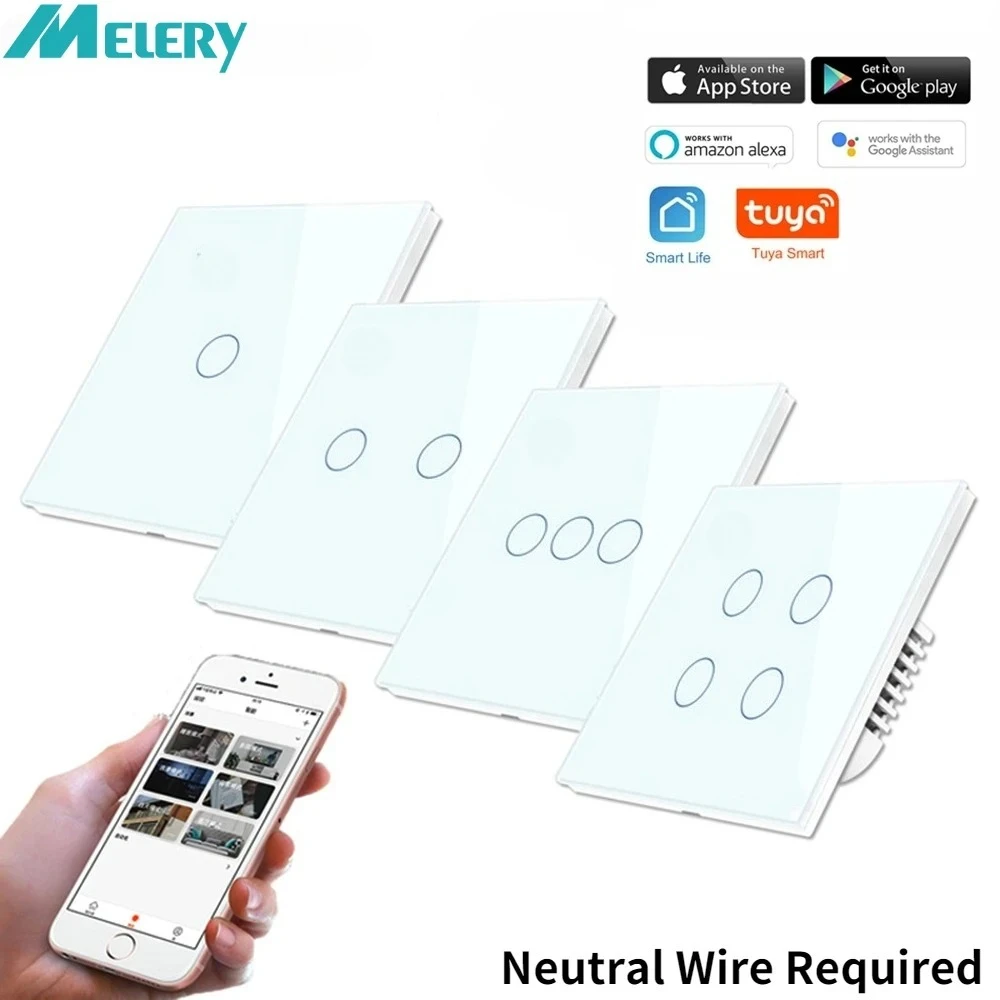
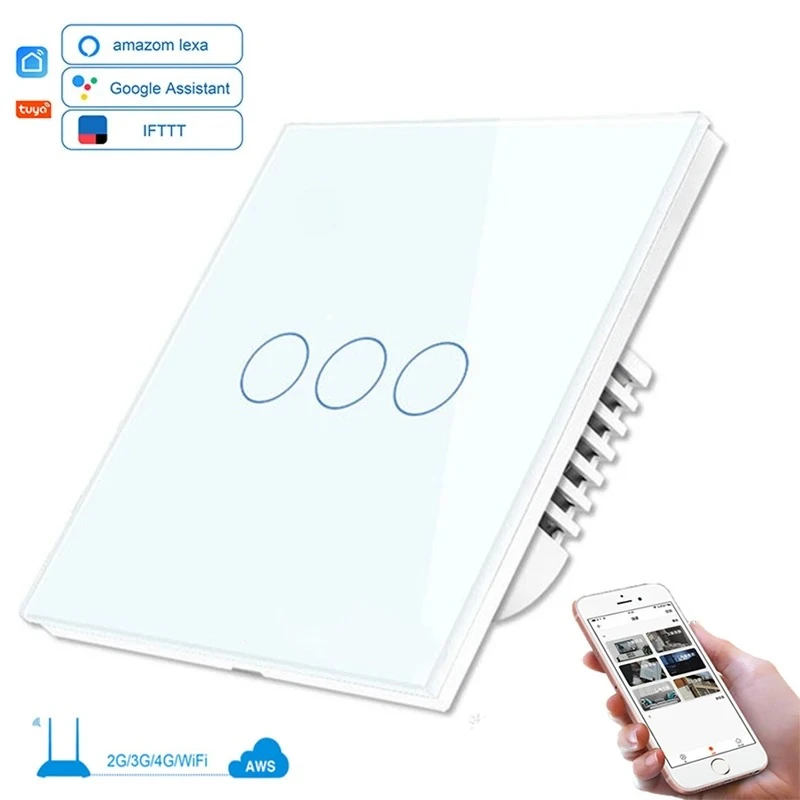
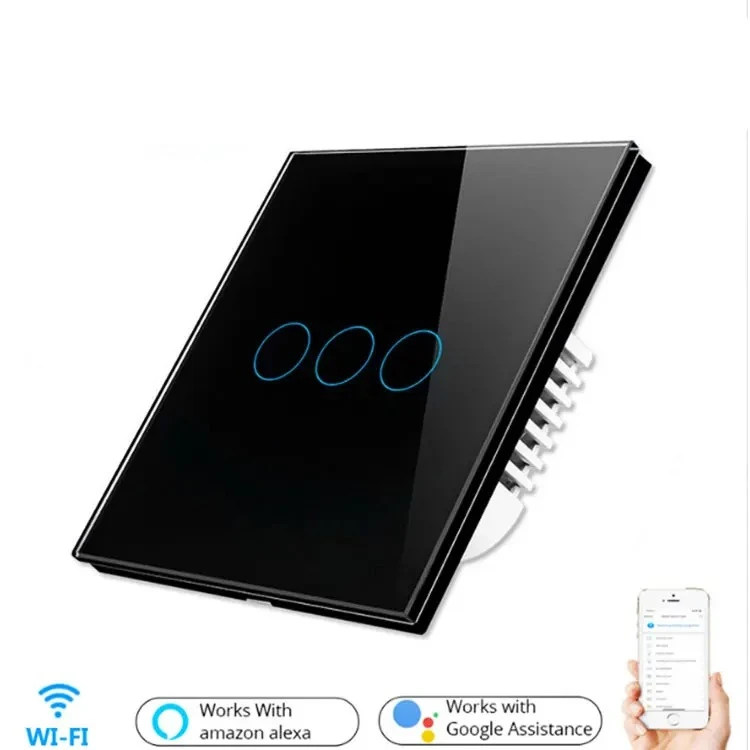
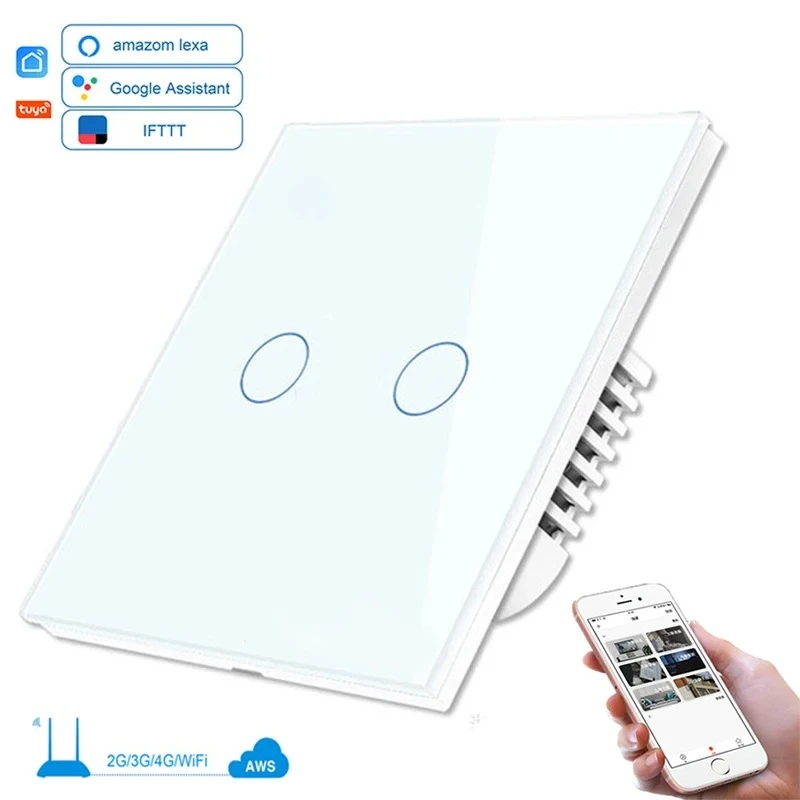
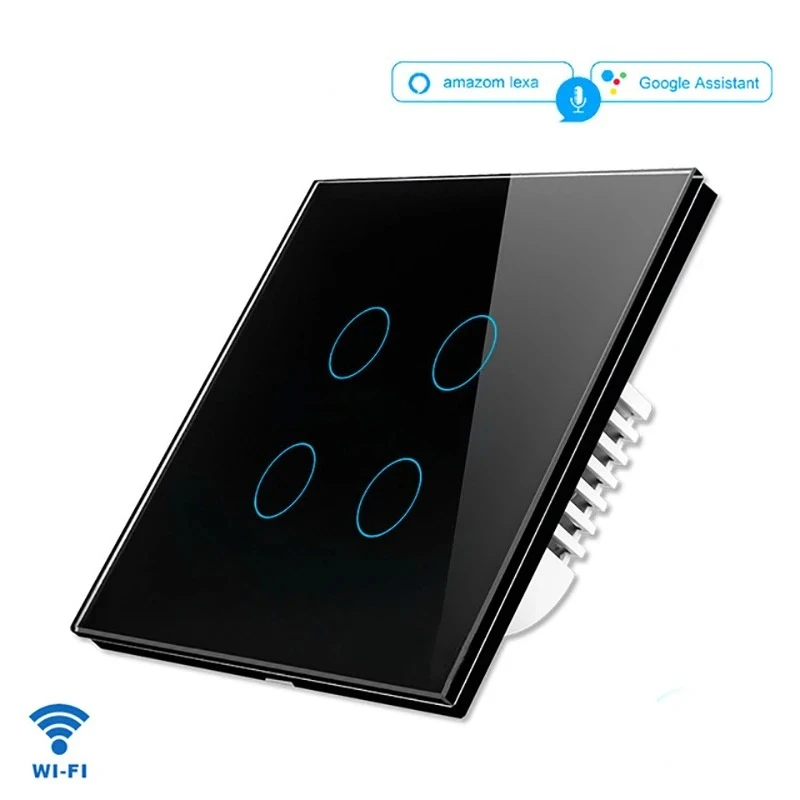
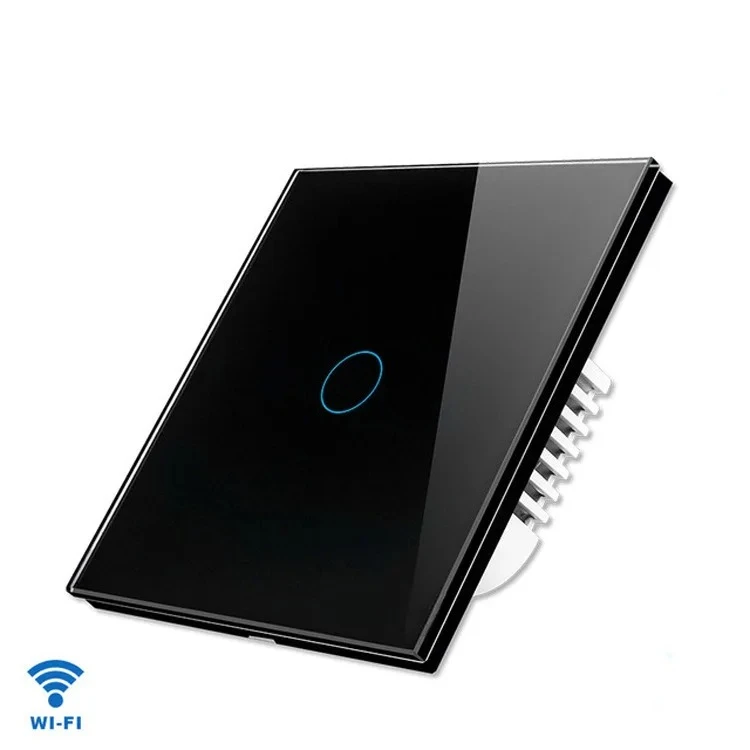
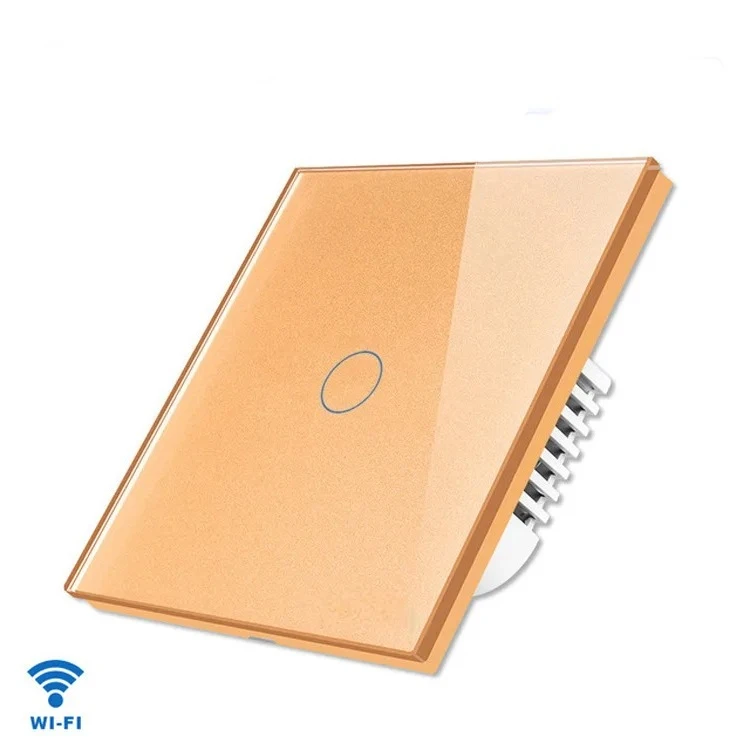
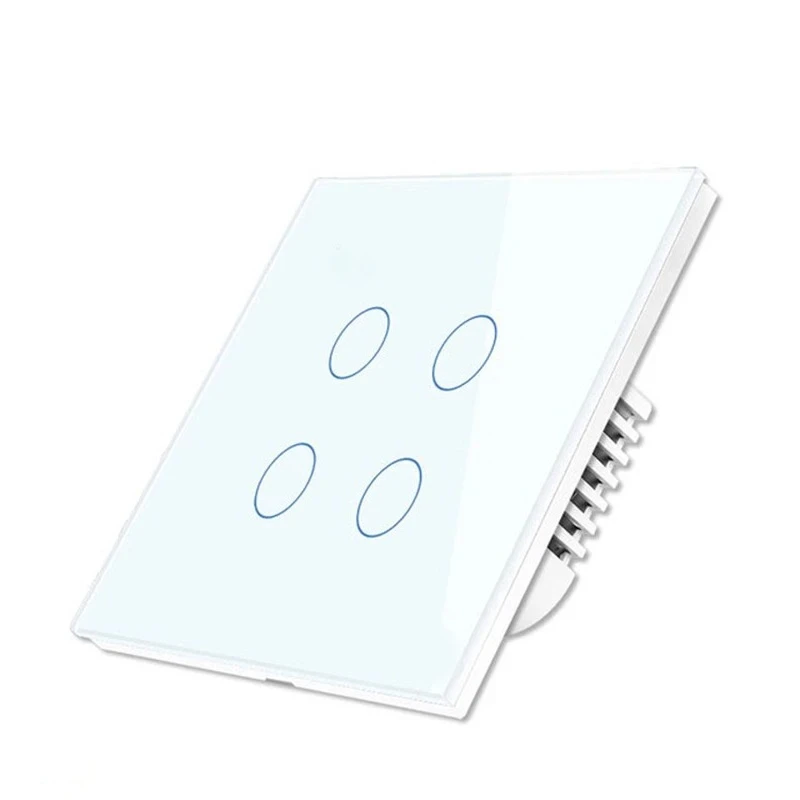
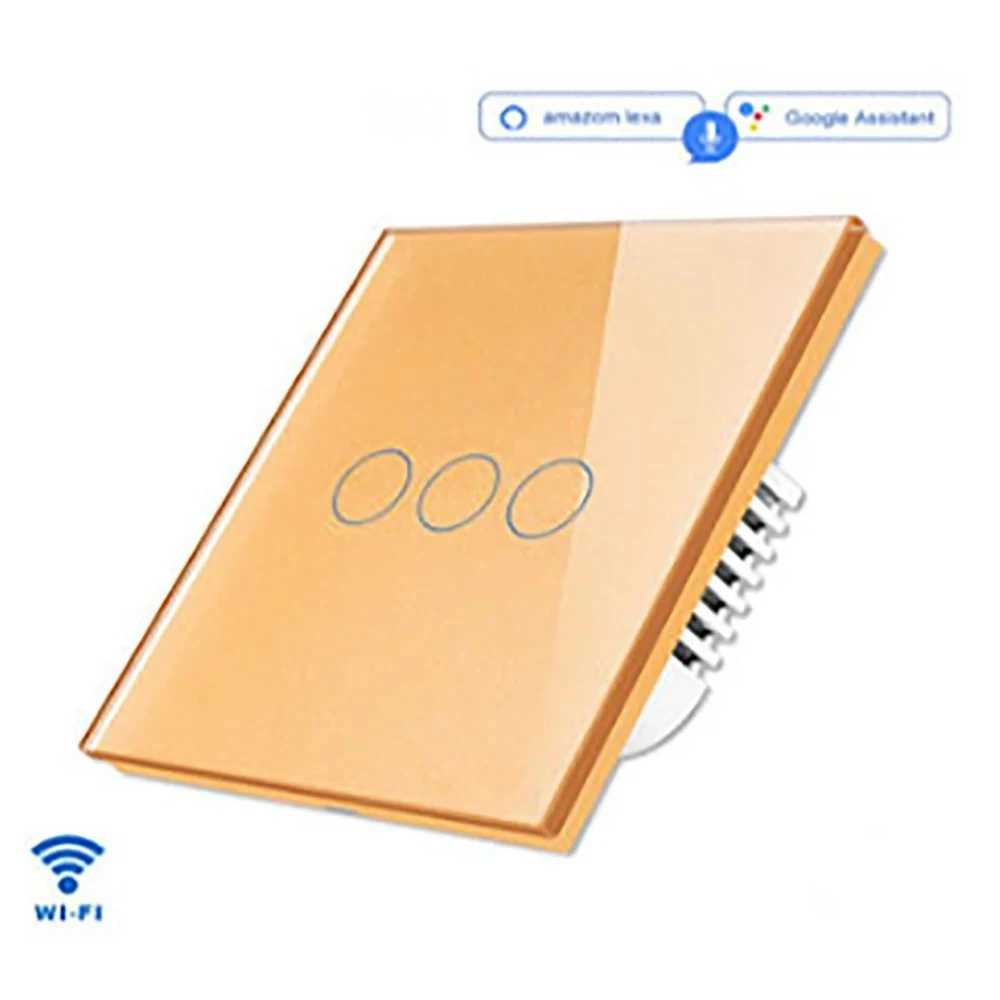
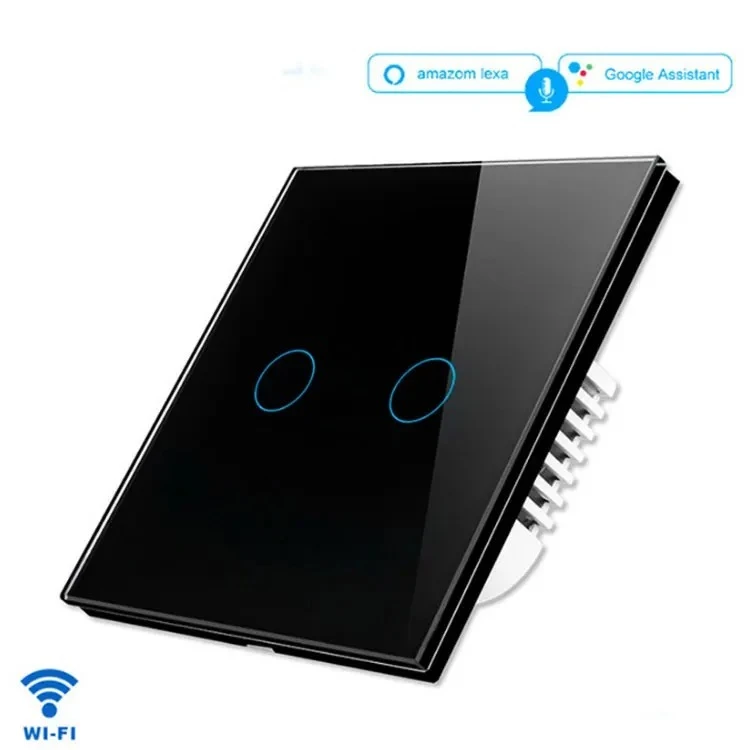
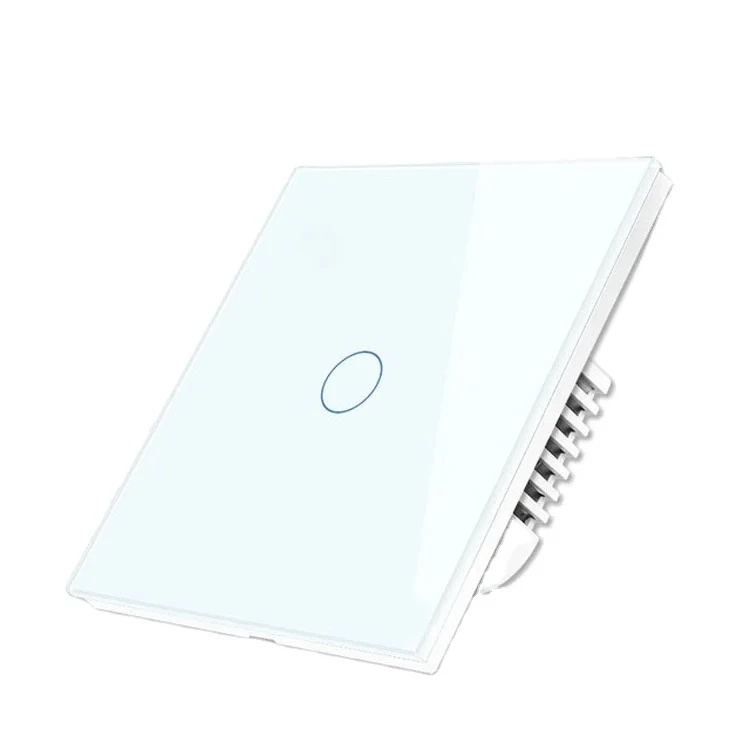
Melery Tuya Smart Touch Switch 86x86mm Tuya Glass Panel 1/2/3/4 Gang, Works with Alexa & Google Home
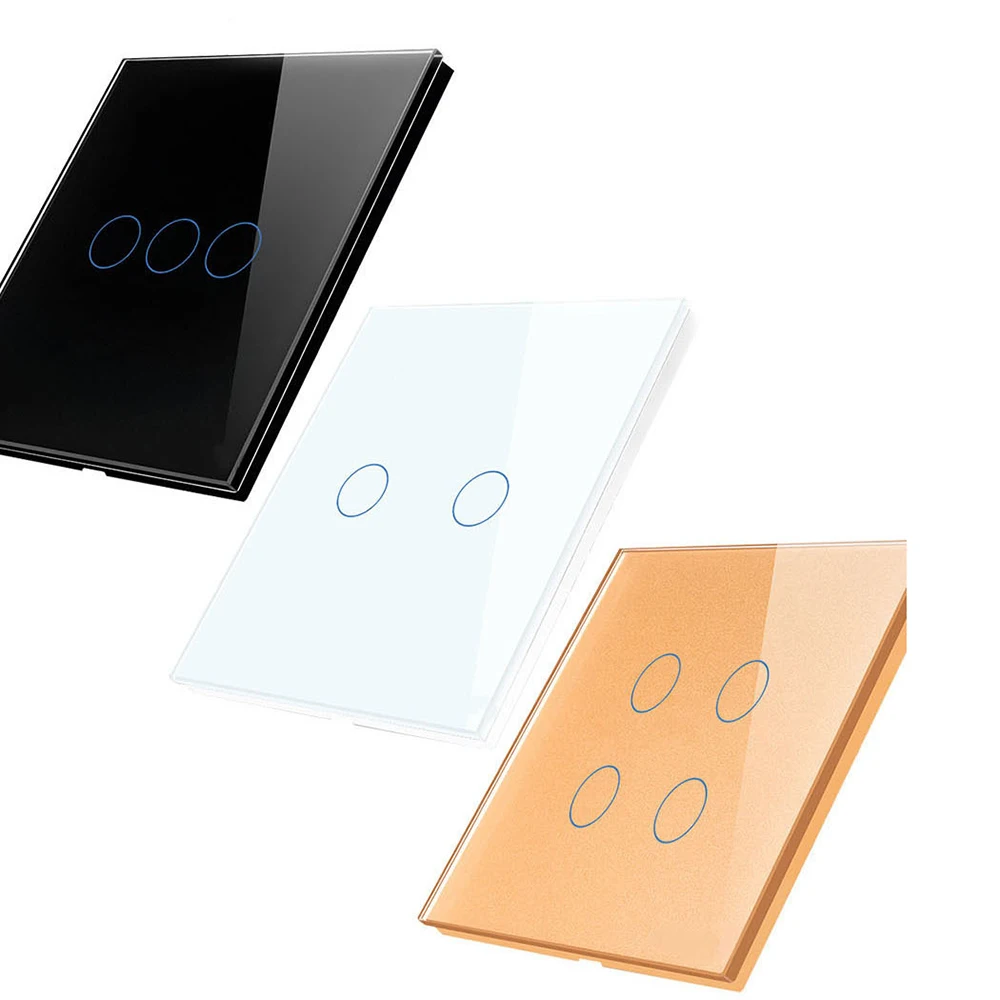
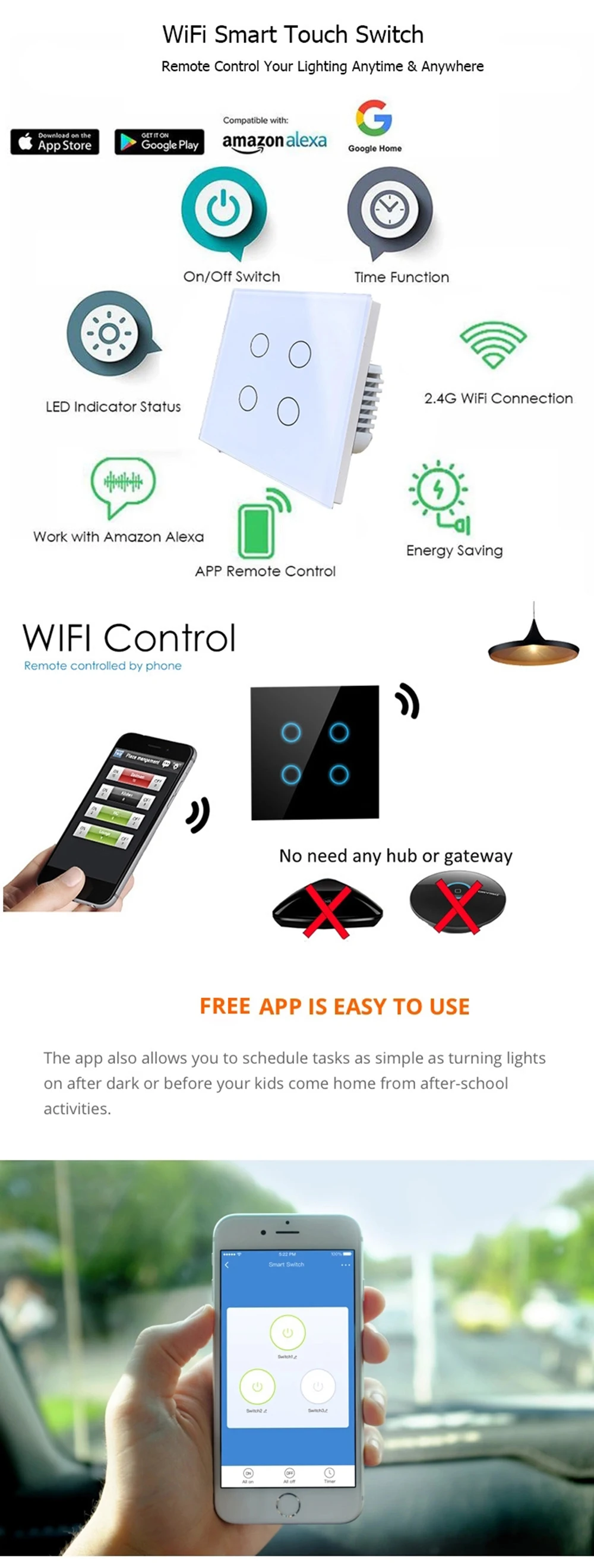
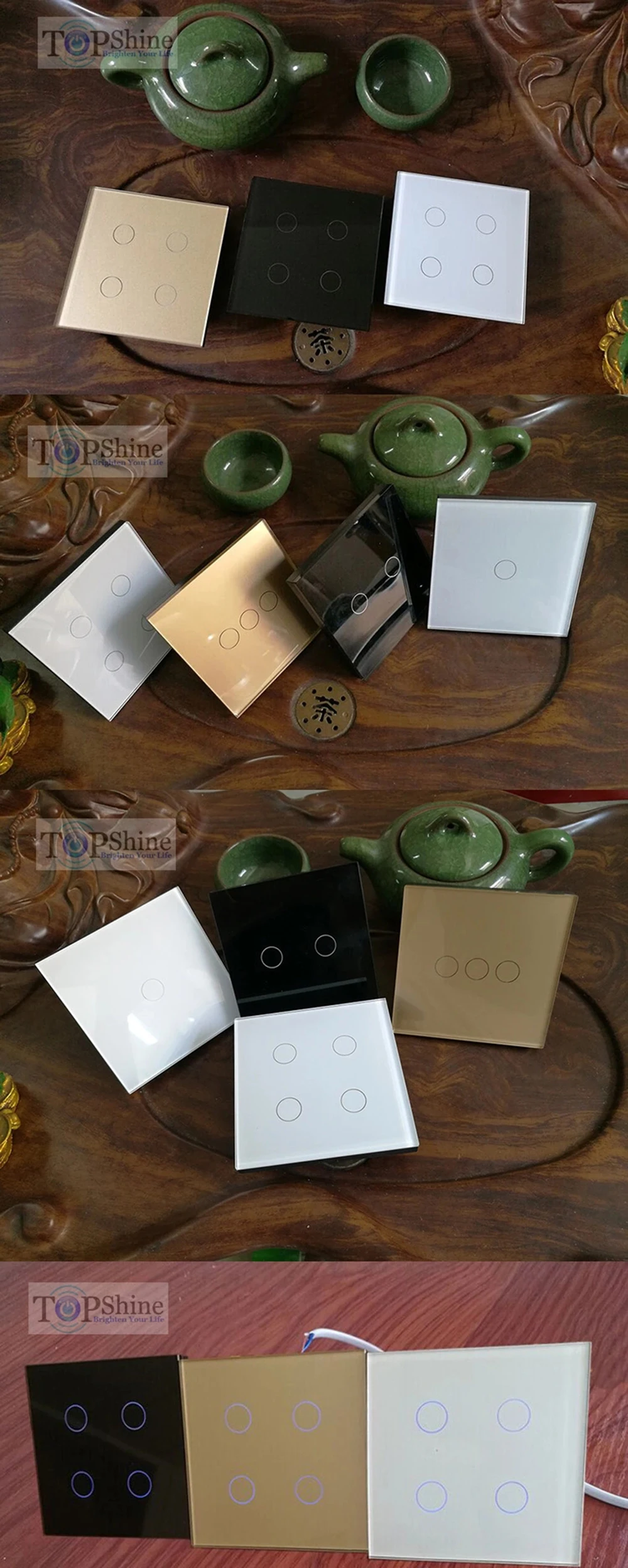
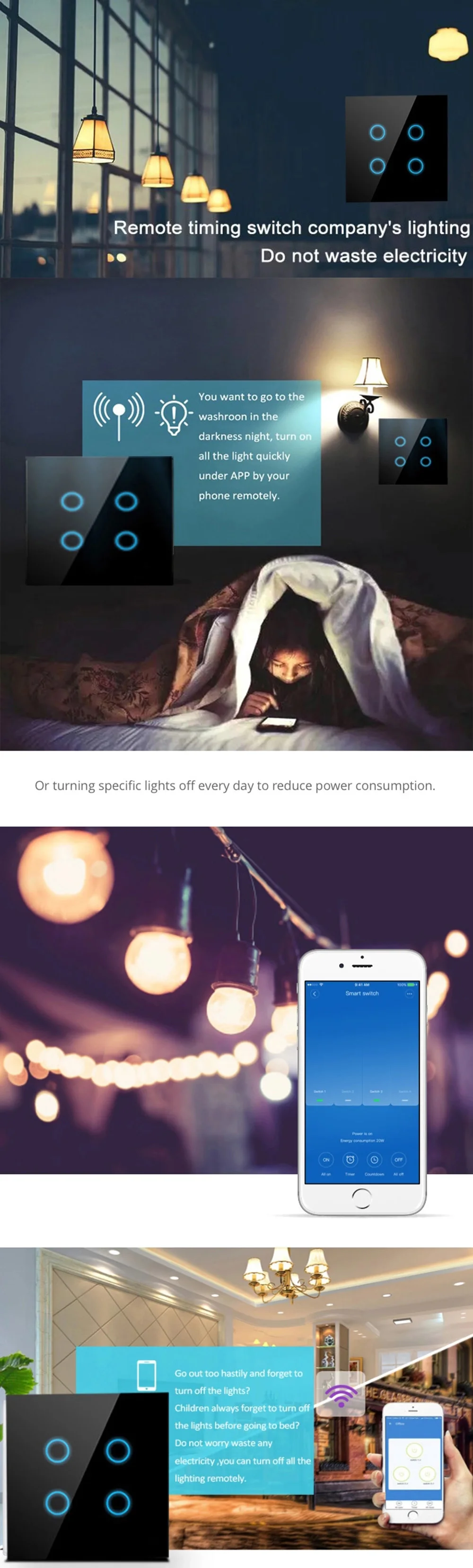
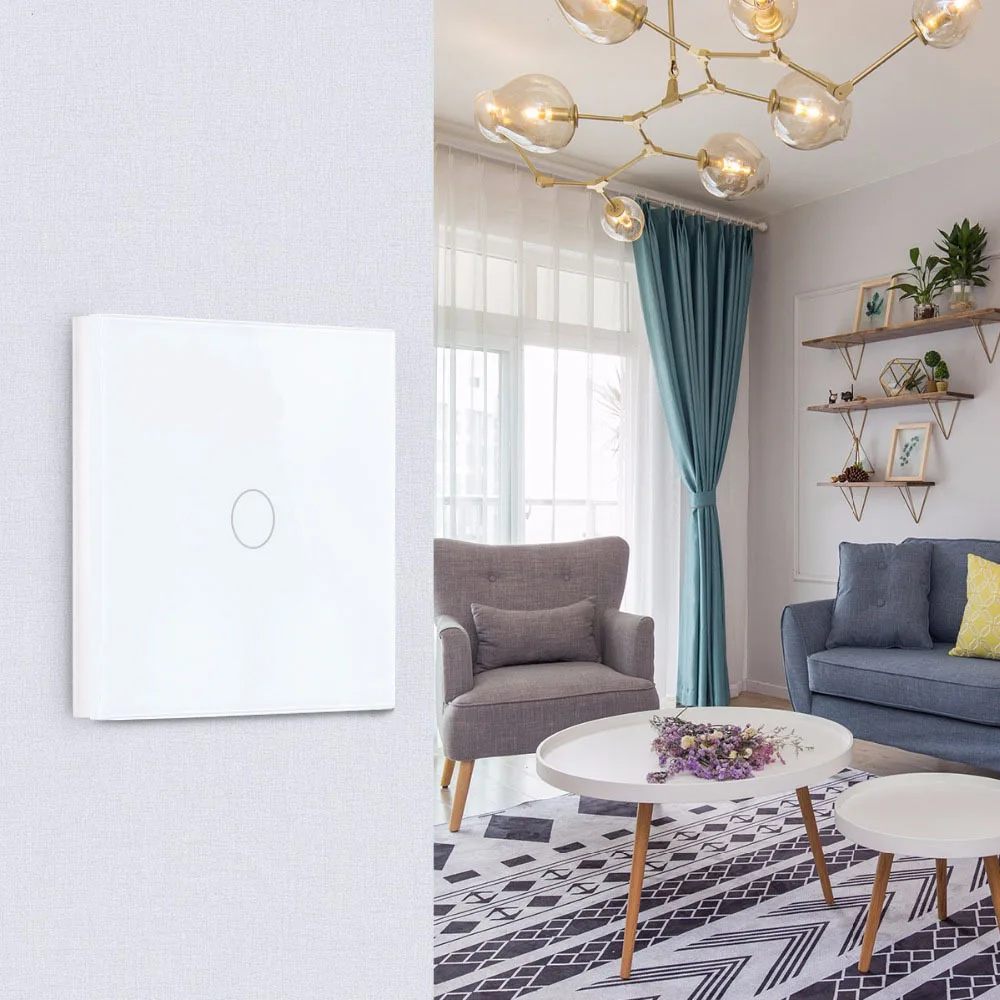
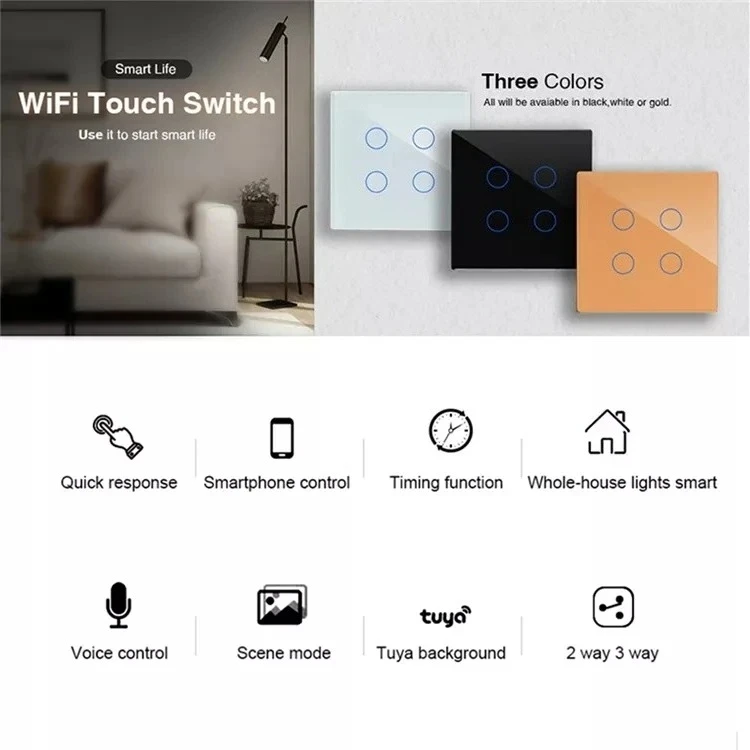
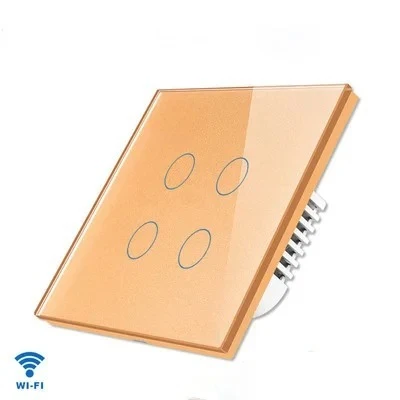
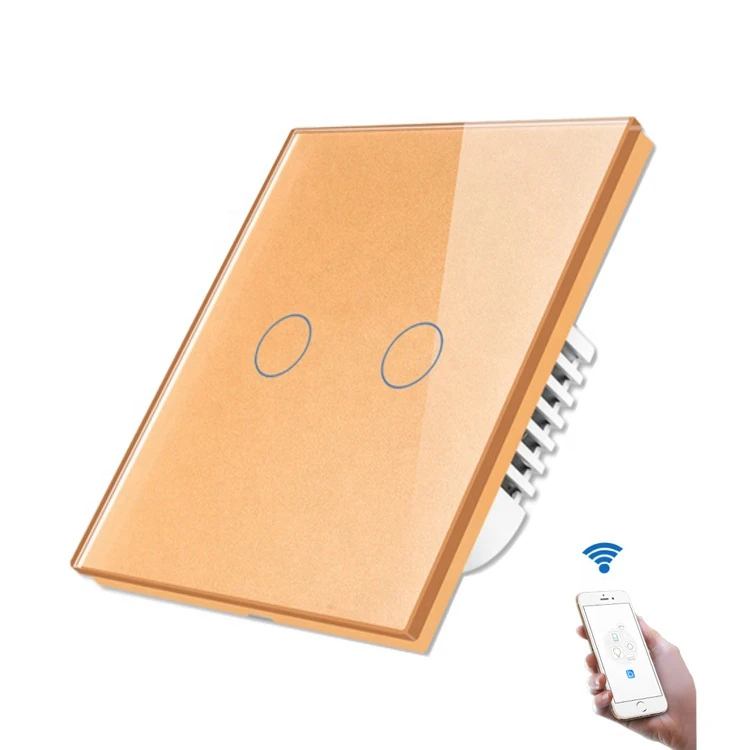
Upgrade your home to a smart lifestyle with our Melery Tuya Smart Touch Switch! Featuring a sleek 86x86mm Tuya glass panel, this switch supports 1/2/3/4 gang independent control, compatible with Alexa Echo, Echo Dot, and Google Home for hands-free voice control. Enjoy remote access, timing functions, and real-time status sync via the Smart Life App—no hub required!
Key Specifications
-
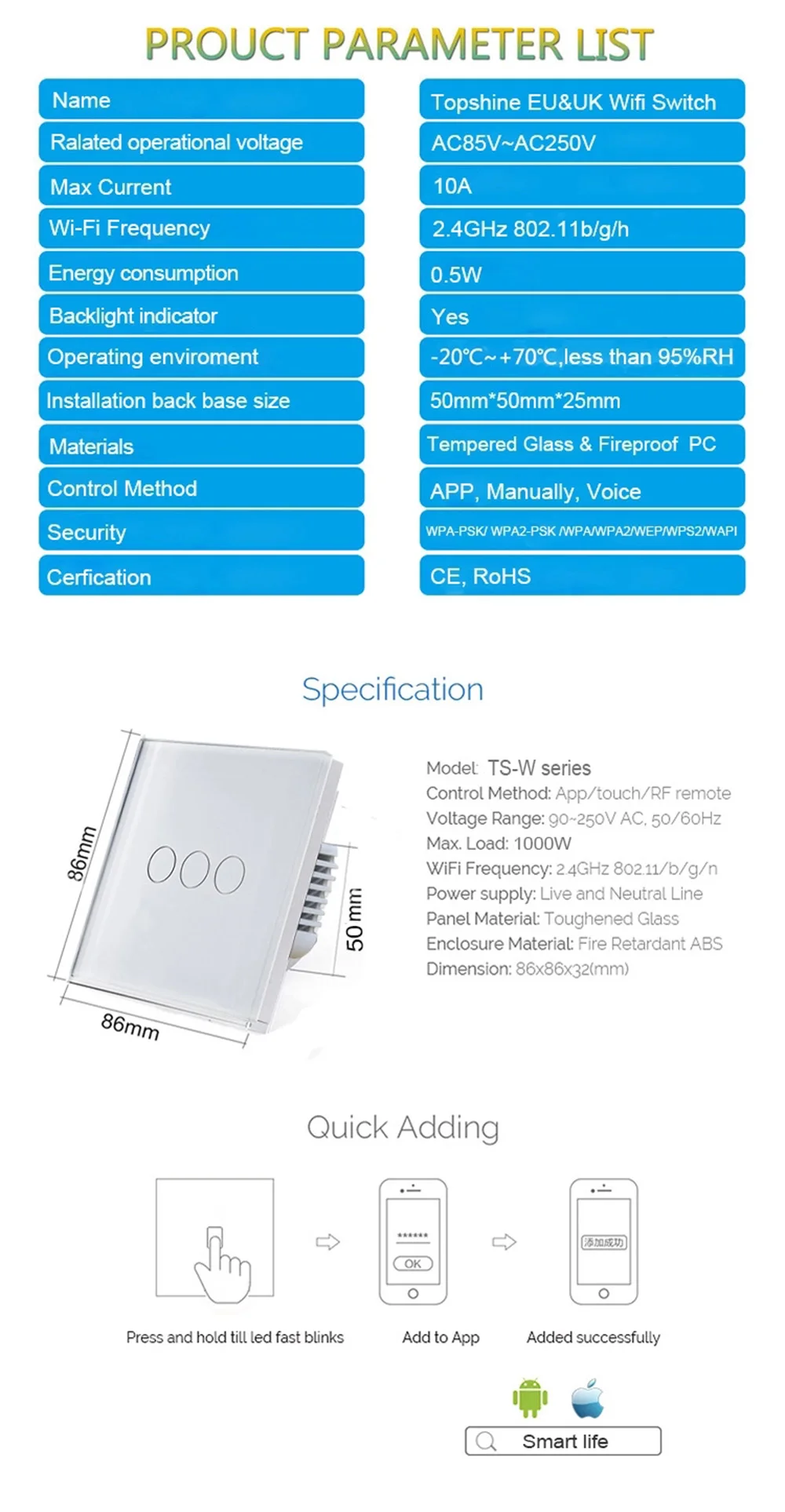
Power Supply: AC 100-250V
-
Maximum Current: 10A per gang
-
Maximum Power: 2000W per gang
-
Wireless Standard: 802.11 b/g/n (Wi-Fi)
-
Security Mechanism: WPA-PSK/WPA2-PSK
-
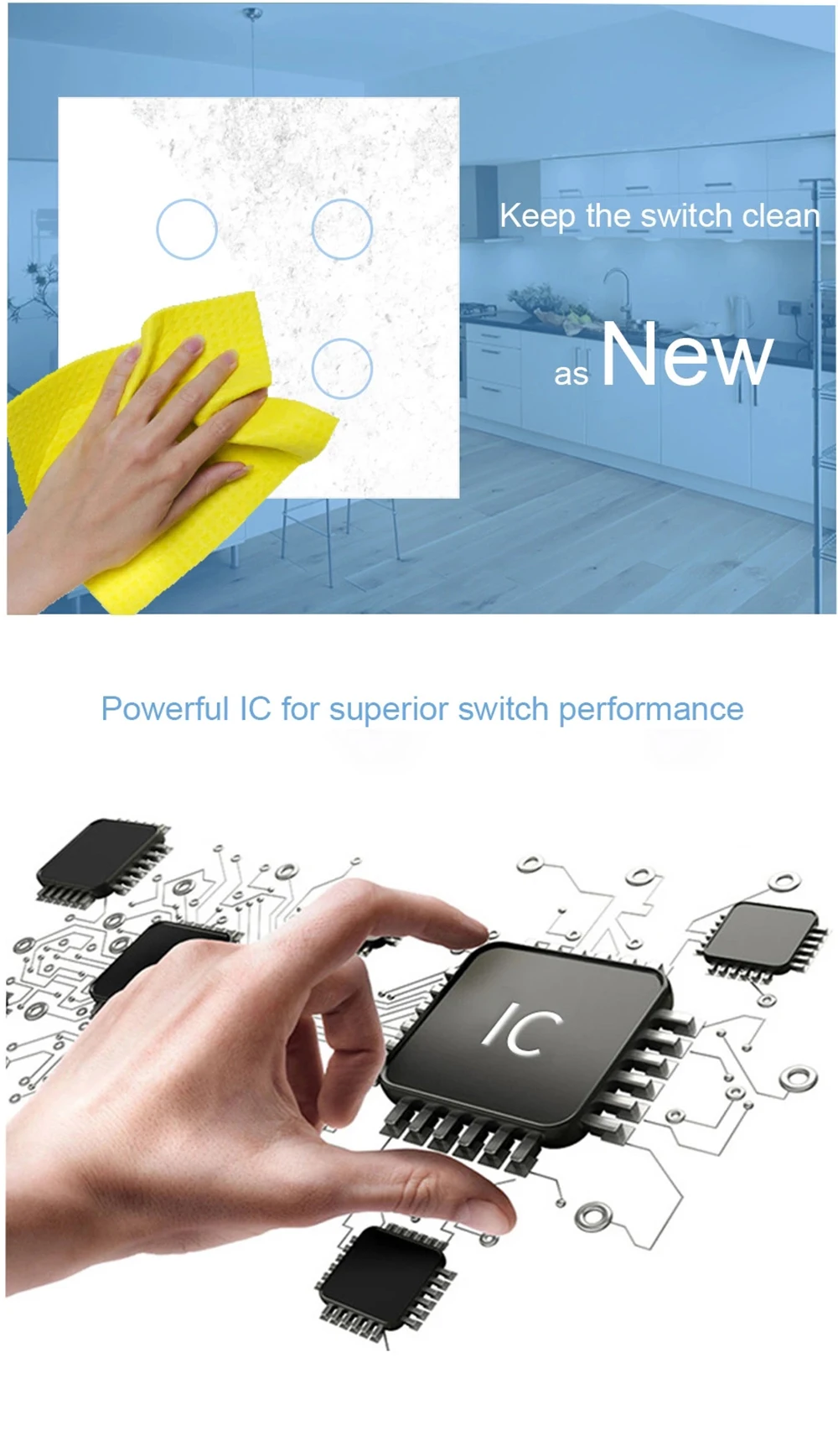
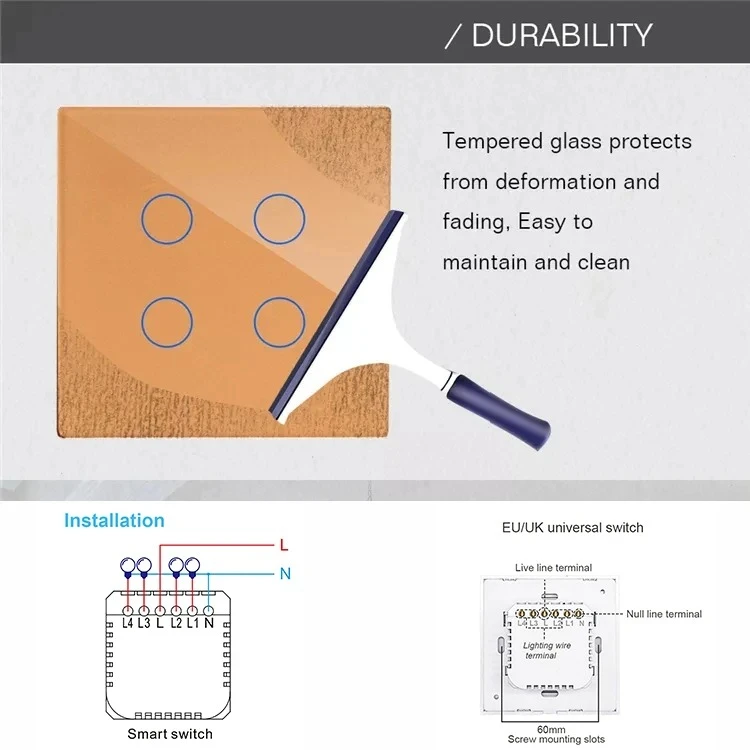
Product Material: PC V0 Fireproof Housing + Tempered Glass Panel
-
Compatibility: Smart Life App (iOS & Android), Alexa Echo/Echo Dot, Google Home
-
Touch Life: Up to 100,000 times
-
Standby Power Consumption: < 0.2W (Super Energy Saving)
-
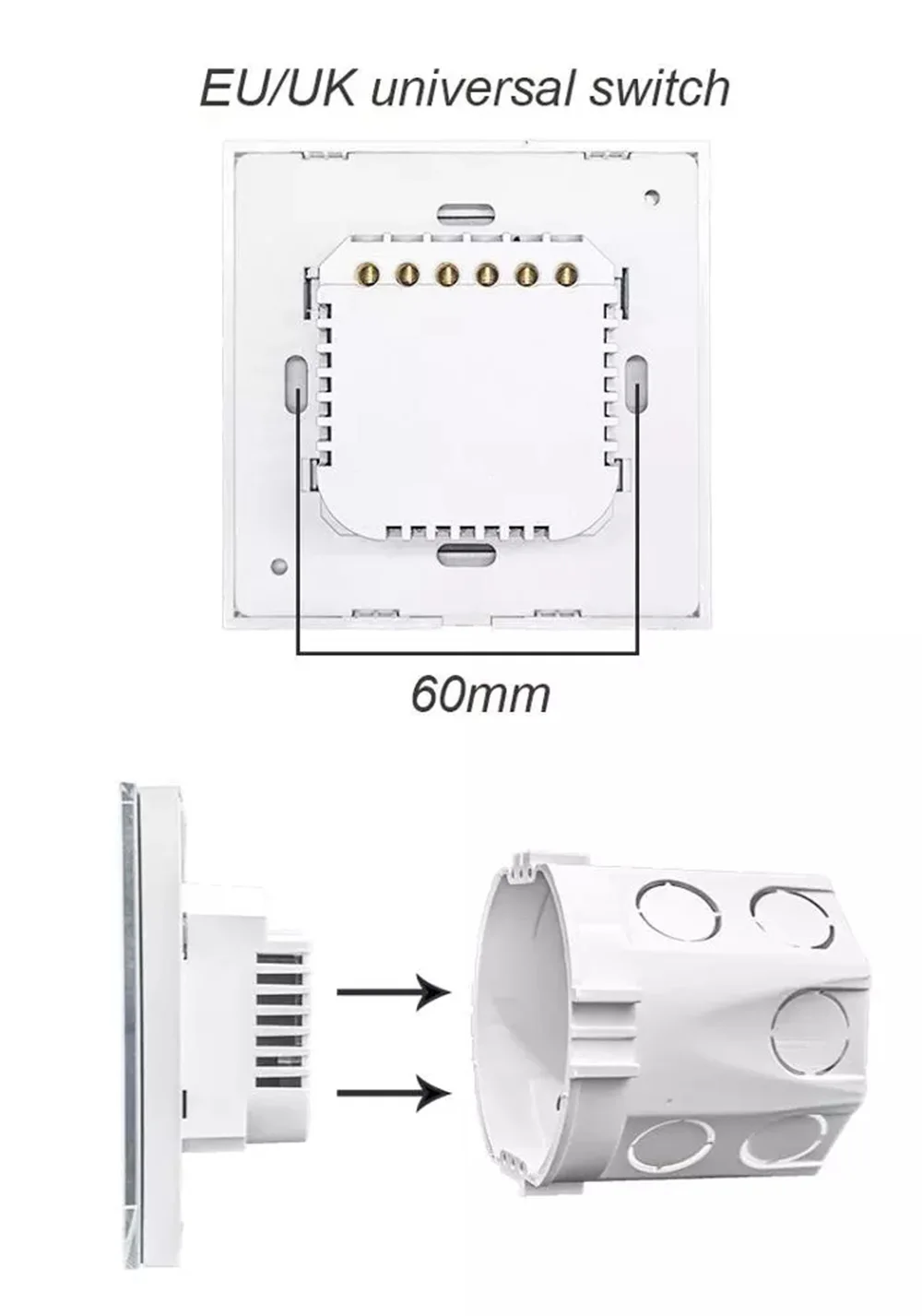
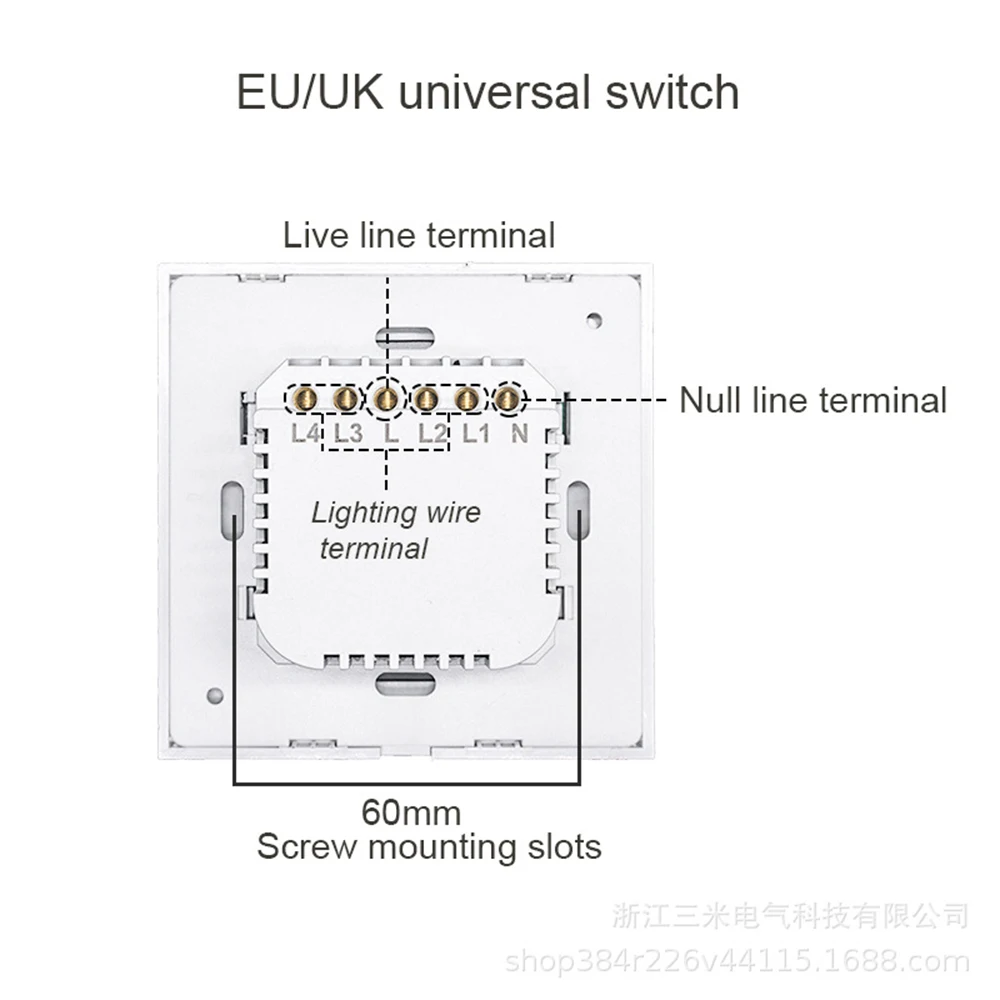
Size: 86x86mm (Standard 86-Type Wall Switch)
Powerful Smart Functions
1. Touch Control & Independent Gang Operation
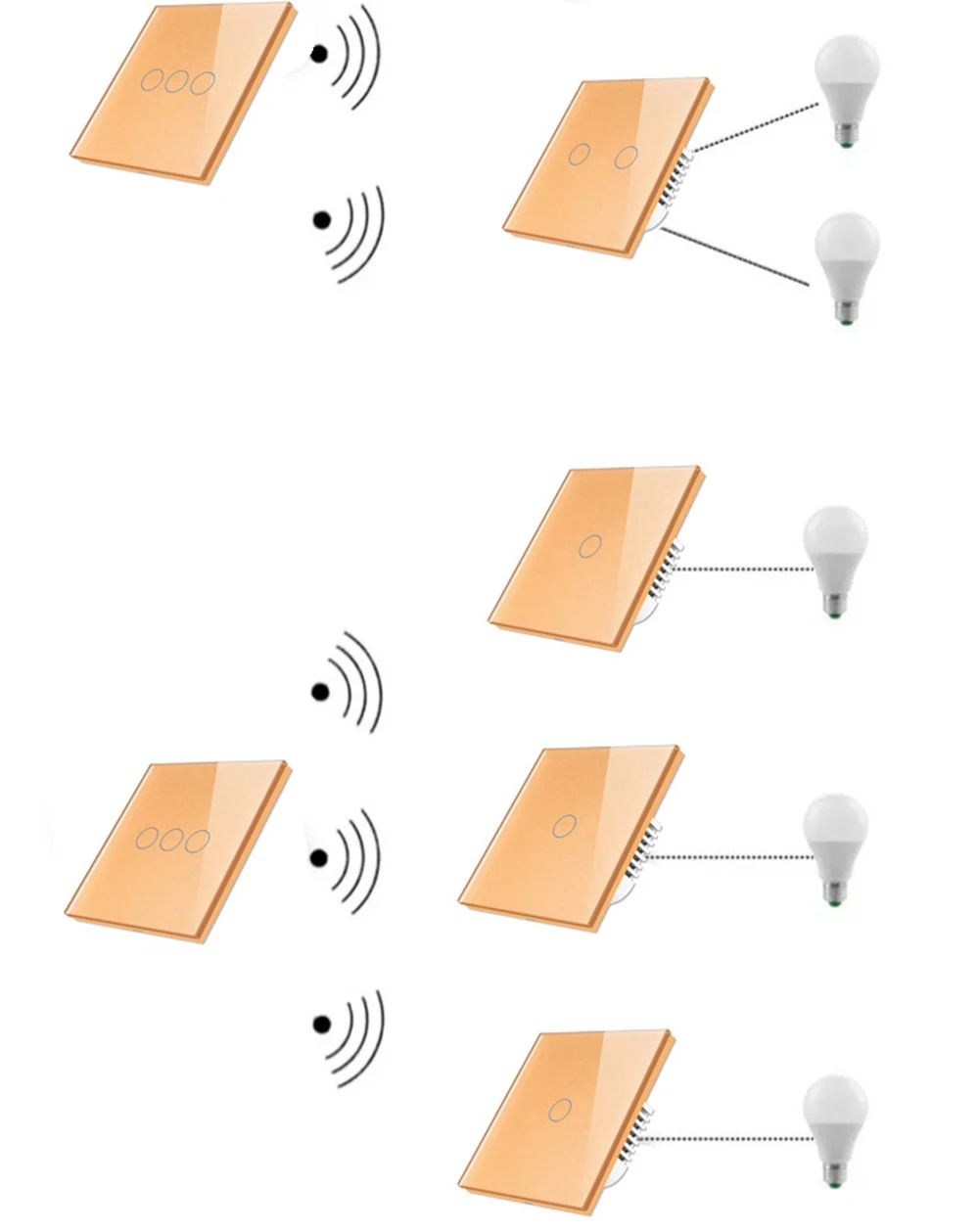
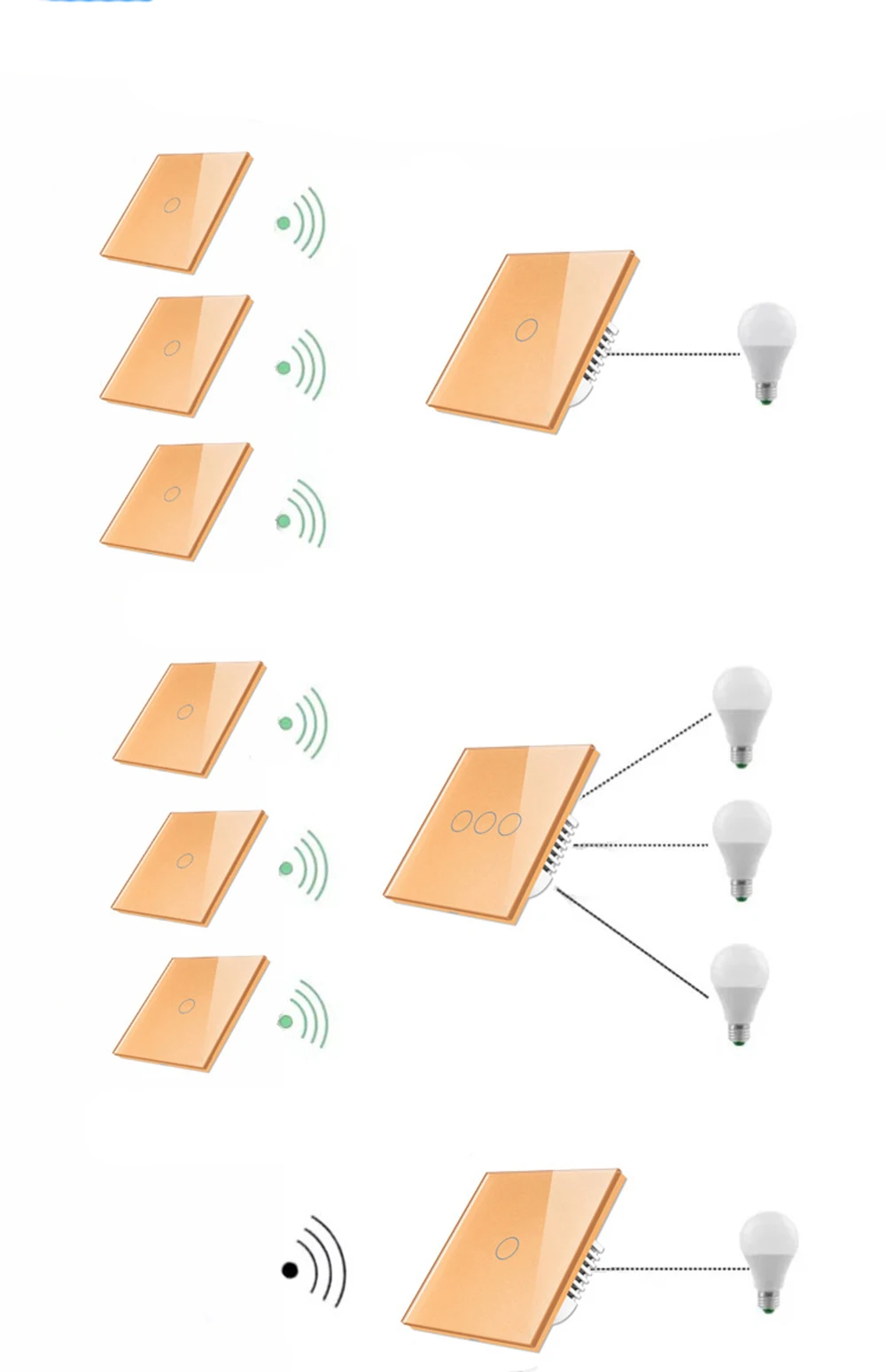
Capacitive touch design for sensitive on/off control—just a light tap to operate. Each gang can be controlled independently, allowing you to manage different lights or devices separately according to your needs.
2. Voice Control (Works with Alexa & Google Home)
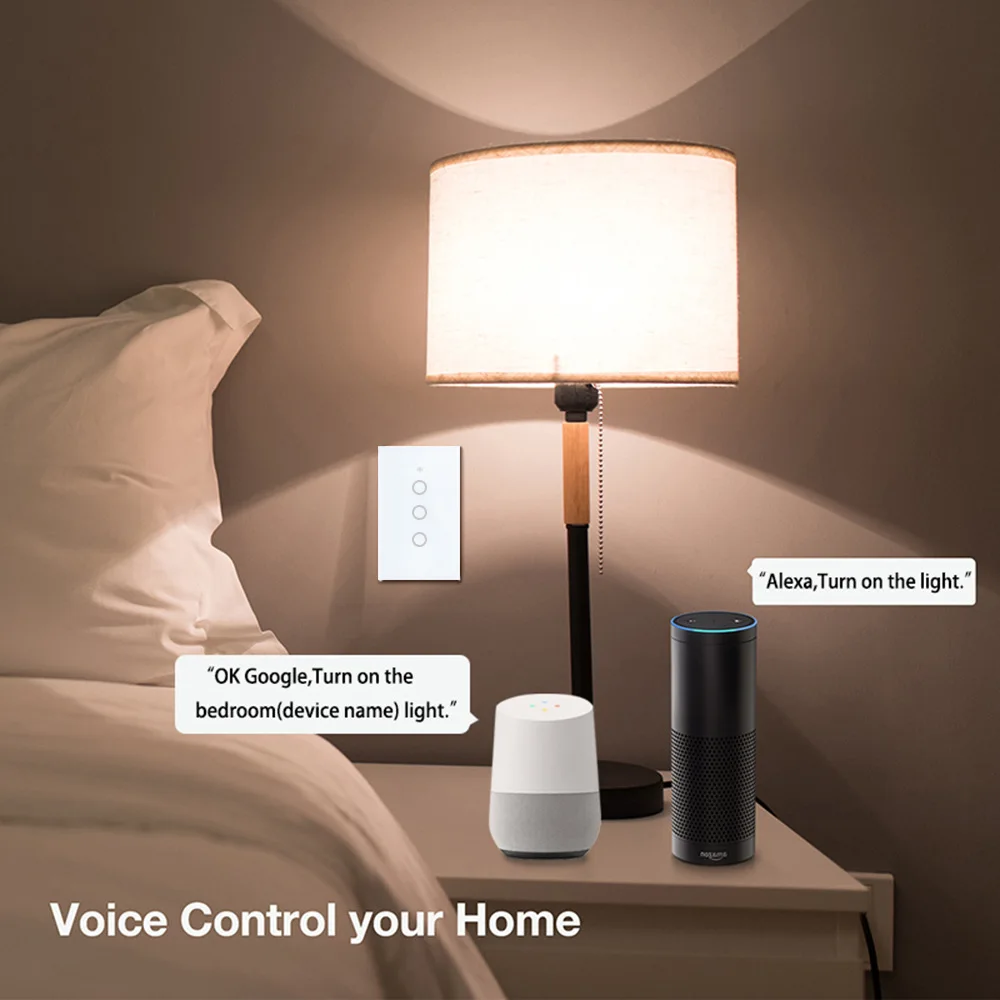
Seamlessly compatible with Amazon Alexa (Echo, Echo Dot, Tap) and Google Home. Simply issue voice commands like "Alexa, turn on the living room light" to control the switch, freeing your hands and making daily life more convenient. No hub or additional accessories required.
Step-by-Step Pairing Guide for Alexa
-
First, add the Melery Tuya smart switch to the Smart Life App and complete the network configuration (ensure the switch is online).
-
Open the Alexa App on your mobile device and tap "More" at the bottom right corner.
-
Select "Skills & Games" from the menu, then search for "Smart Life" skill.
-
Tap "Enable to Use" and log in with your Smart Life App account to link the two accounts.
-
After successful linking, Alexa will automatically discover the smart switch. You can also tap "Add Device" to manually discover it.
-
Rename the switch (e.g., "Living Room Light") for easier voice control. You can set a 4-digit voice code in the Alexa App for added security if needed—this code will be required when issuing voice commands to control the switch.
-
Now you can use voice commands to control the switch, such as "Alexa, turn on the Living Room Light" or "Alexa, turn off the Living Room Light".
Step-by-Step Pairing Guide for Google Home
-
Ensure the Melery Tuya smart switch has been added to the Smart Life App and is online.
-
Open the Google Home App and tap the "+" icon at the top left corner.
-
Select "Set up device" from the pop-up menu, then choose "Works with Google".
-
Search for "Smart Life" in the search bar and select it.
-
Log in with your Smart Life App account to authorize Google Home to access your smart switch.
-
Follow the on-screen prompts to complete the pairing process. The smart switch will appear in the Google Home device list.
-
Rename the switch as needed, then you can use voice commands like "Hey Google, turn on the Living Room Light" to control it.
3. Tuya Smart Life App Pairing Guide
To enjoy remote control and smart functions, you need to pair the Melery Tuya smart switch with the Smart Life App first. The App is free for both iOS and Android devices, and the pairing process is simple and straightforward.
Step 1: Download & Install the Smart Life App
Search for "Smart Life" in the App Store (for iOS) or Google Play Store (for Android), then download and install the official App. You can also scan the QR code provided in the product manual to download it directly.
Step 2: Register & Log In to the App
-
Open the Smart Life App and tap "Create New Account" if you don't have an account yet. If you already have an account, skip to Step 3 and log in directly.
-
The system will automatically detect your country/region; you can also manually select it. Enter your mobile phone number or email address, then tap "Get Verification Code".
-
Enter the verification code you received via SMS or email, set a password (6-20 characters, must include letters and numbers), and tap "Complete" to finish registration.
-
Log in to the App with your registered account (mobile phone number/email + password), or use social accounts (WeChat/QQ) for quick login after authorization.
Step 3: Create a Home & Add Room (Optional but Recommended)
-
After logging in, tap "Start Your Smart Life" to enter the "Add Home" page.
-
Customize the "Home Name" (e.g., "My House"), set the "Home Location" by moving the coordinate point on the map, then tap "Confirm".
-
Select existing rooms (e.g., Living Room, Bedroom) or tap "Add Other Room" to create custom rooms. Tap "Done" in the upper right corner to complete the home and room setup. You can modify these settings at any time later.
Step 4: Put the Switch into Pairing Mode
Ensure the Melery Tuya smart switch is properly wired and powered on. Press and hold the touch button of the switch for 5-8 seconds until the indicator light starts flashing quickly (this indicates the switch has entered pairing mode successfully). If the indicator light does not flash, power off the switch and try again.
Step 5: Add the Switch to the App
-
On the App's homepage, tap the "+" icon in the upper right corner, then select "Add Device" from the menu.
-
The App will automatically search for nearby smart devices in pairing mode. If the switch is not found automatically, you can tap "Manual Add" and select "Switch" > "Wi-Fi Switch" to search manually.
-
Select the detected Melery Tuya smart switch, enter your home Wi-Fi password (only supports 2.4GHz Wi-Fi, 5GHz Wi-Fi is not supported), and tap "Next".
-
Wait for 20-60 seconds; the App will display "Pairing Successful" when the switch is connected to the network. You can then rename the switch (e.g., "Living Room Main Light") and assign it to the corresponding room you created earlier.
-
Tap "Done" to complete the pairing. The switch will now appear in the App's device list, and you can start controlling it via the App.
Pairing Notes
-
Make sure the switch is in pairing mode (indicator light flashing quickly) before adding it to the App.
-
The switch only supports 2.4GHz Wi-Fi networks; please confirm your router's Wi-Fi band before pairing. If your router is dual-band, please separate the 2.4GHz and 5GHz Wi-Fi signals and connect to the 2.4GHz one.
-
If pairing fails, check if the Wi-Fi password is correct, ensure the switch is within the Wi-Fi signal coverage, or reset the switch (press and hold the touch button for 10 seconds) and try pairing again.
4. Remote Control Anywhere, Anytime
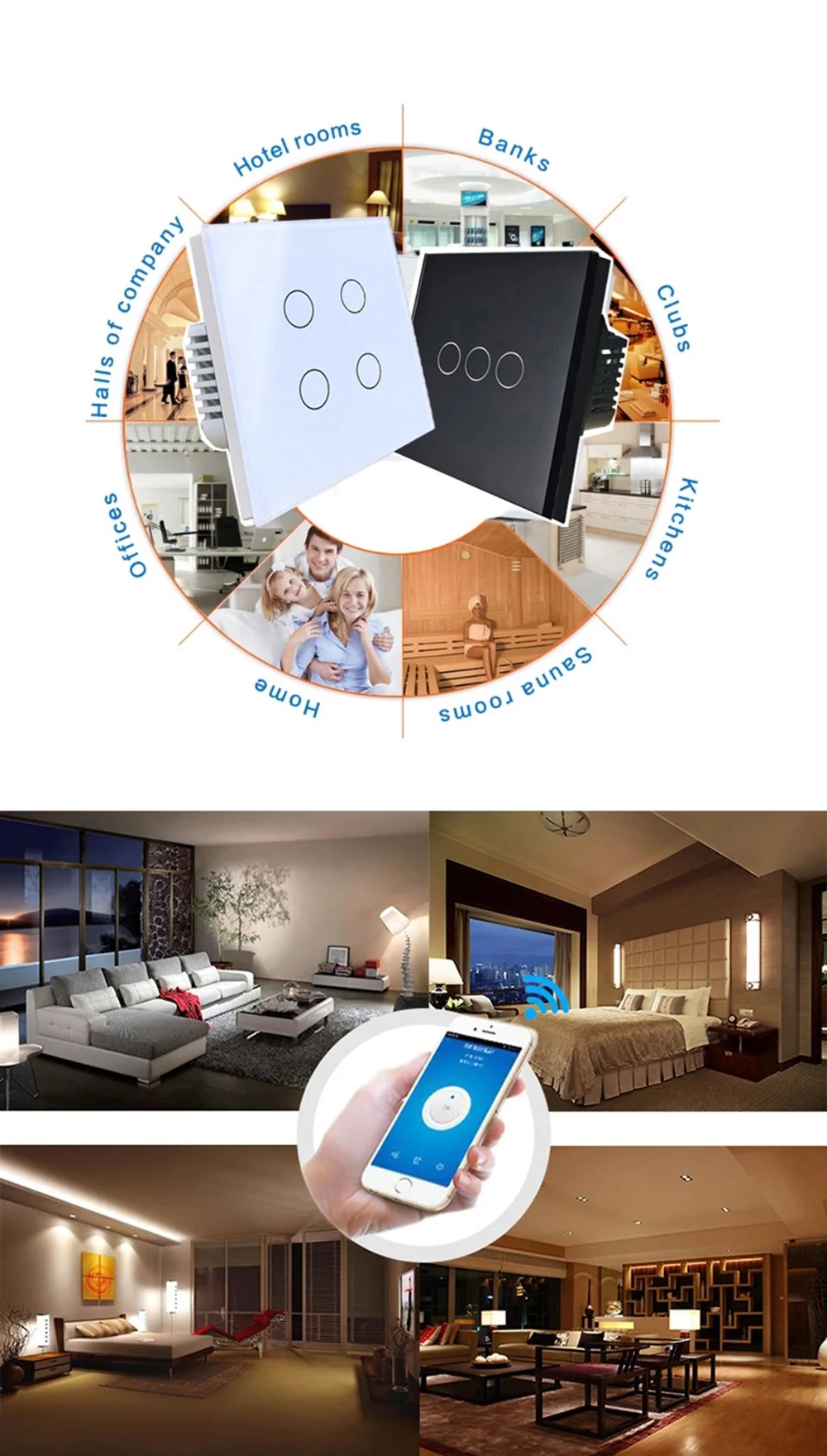
Connect the switch to the Smart Life App (free for iOS and Android). As long as your phone has 2G/3G/4G or Wi-Fi network, you can remotely turn on/off lights or devices from anywhere—whether you're at work, traveling, or on the way home. Real-time device status is synced to the App, so you can always know the working status of your devices.
4. Flexible Timing Function
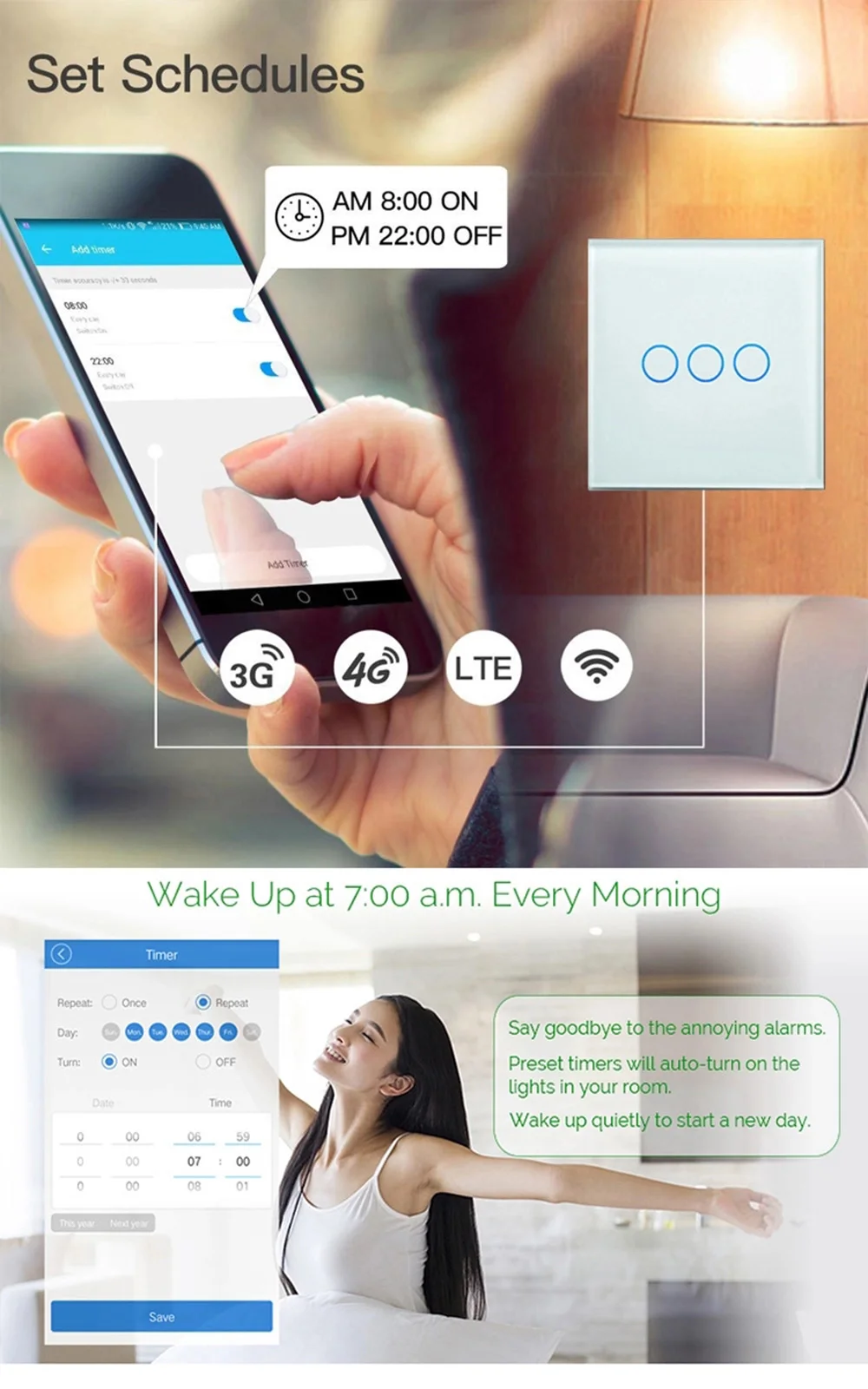
Set reservation or countdown timers to turn on/off devices at specified times. Support up to 8 groups of single or repeat timers (works in offline state). Perfect for daily scheduling: set the light to turn on automatically when you wake up, or turn off the bedroom light after you fall asleep, bringing you a comfortable and intelligent lifestyle.
5. Share Control & Smart Scene
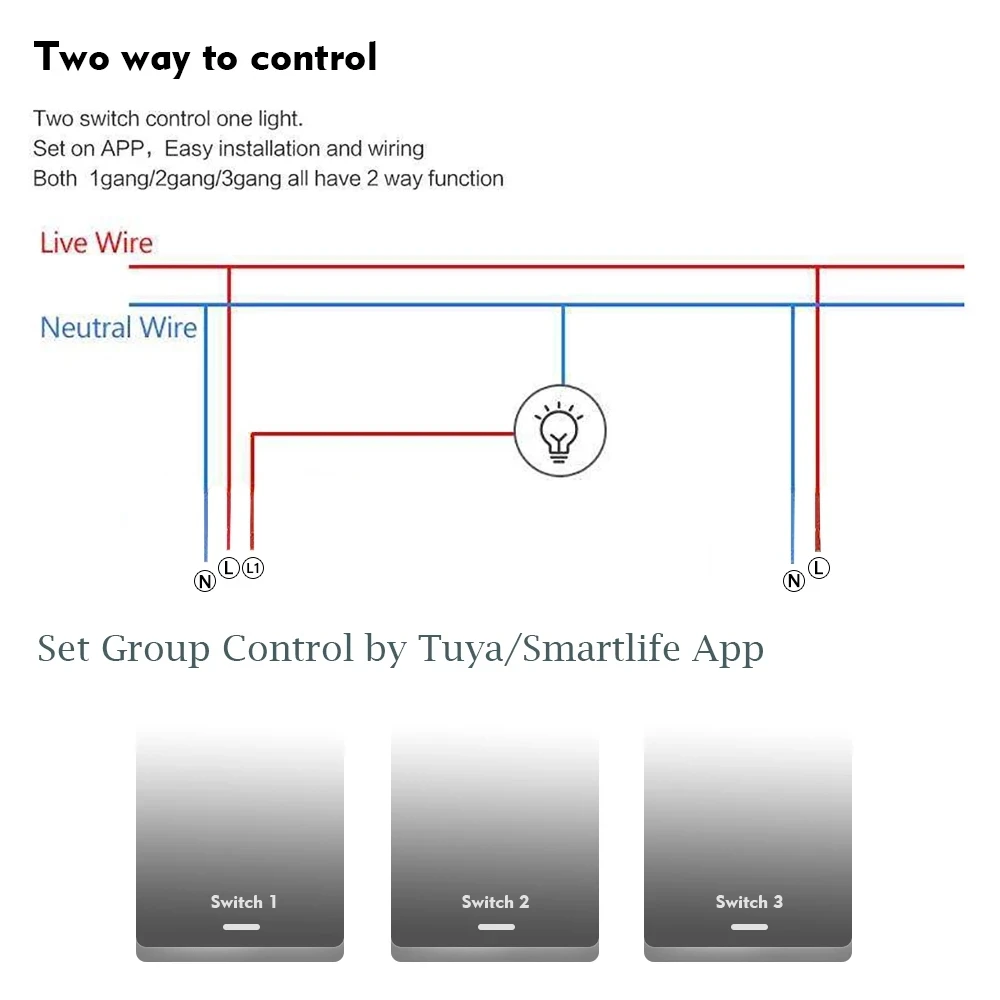
Share the switch control permission with your family members via the App, so everyone can manage the smart home together. Create smart scenes to turn on/off a group of devices with one tap, or trigger on/off by environmental conditions (e.g., link with a door sensor to turn on the light when the door is opened) or other smart devices.
Package Included
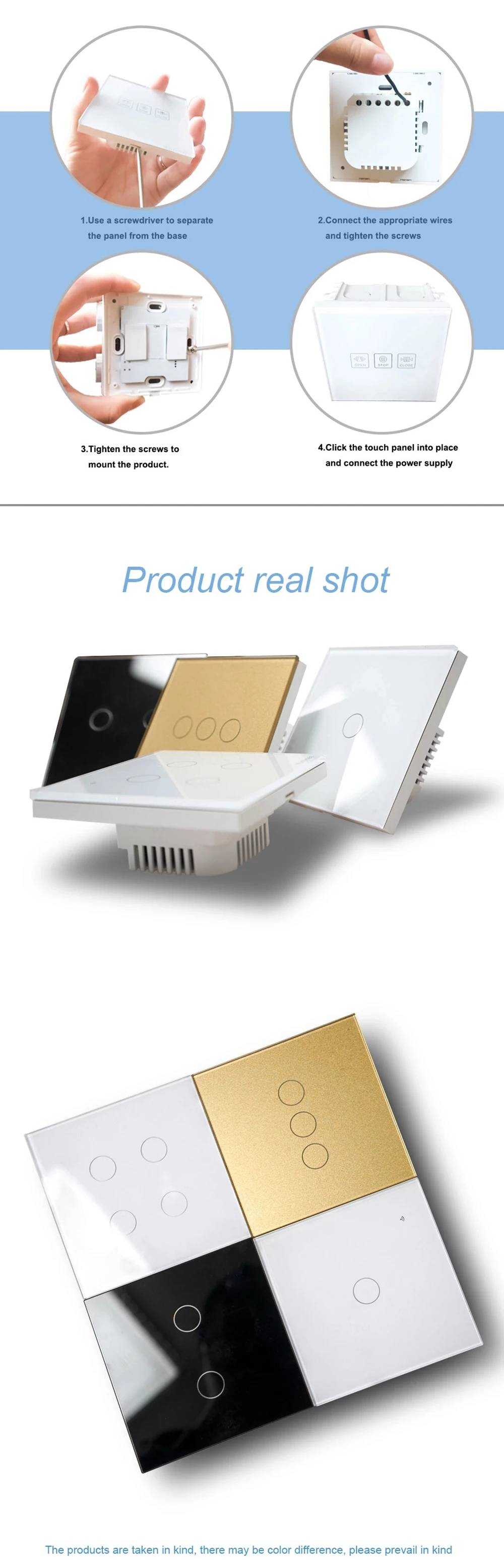
1 x Tuya Smart Touch Switch (1/2/3/4 Gang, choose according to your needs) 1 x Installation Manual
![]()
![]()
![]()
![]()
![]()
![]()
![]()
![]()
![]()
![]()
![]()
![]()
![]()
![]()